A flat, two-dimensional cover image on a pre-order announcement looks like a draft. A photorealistic 3D mockup — your hardcover standing on a desk, your paperback held in a hand, your e-reader glowing on a nightstand — looks like a finished, real, buyable book. That single visual difference changes how readers perceive your launch, and it directly affects whether they click "pre-order" or scroll past.
Here's exactly how to use a 3D mockup in a book pre-order announcement, from generating the right renders to placing them where they'll do the most work.
Why 3D Mockups Change Pre-Order Performance
Pre-orders are a trust problem. A reader who doesn't know you is being asked to pay for something that doesn't physically exist yet. The job of your announcement is to collapse that gap — to make the book feel real, finished, and worth waiting for.
A well-placed 3D mockup does three things instantly:
- It signals that the book is complete, not speculative
- It shows the cover in a context that mirrors how readers actually encounter books — on shelves, in hands, on devices
- It gives your email, social post, or landing page a visual anchor that holds attention long enough for your copy to do its work
Hiring a freelance designer to produce custom 3D book renders typically costs $300–$800 and takes 3–5 business days. For a pre-order launch, that timeline is often the difference between hitting your promotional window and missing it entirely.
Choose the Right Mockup Type for Each Channel
Not every 3D mockup works equally well across every platform. The wrong format in the wrong place looks off, even if the render itself is beautiful. Match your mockup to the context.
- Email announcement: Use the hardcover or paperback standing upright. It reads as "book" immediately at small sizes, and email clients compress images — a clean, high-contrast 3D render survives that compression better than a busy flat image.
- Instagram or Facebook post: The paperback or the boxset render works best here. Boxsets communicate volume and value — they make a single book look like a complete system, which is especially effective for non-fiction.
- Amazon Author Page or landing page hero: Lead with the hardcover mockup. It carries the most perceived prestige. Place it on the right side of a two-column layout, copy on the left.
- TikTok or Instagram Reels thumbnail: The e-reader/Kindle device mockup reads quickly in a vertical scroll feed and signals that the book is available immediately on any device — reassuring for digital pre-orders.
- Course or bundle announcements: Use the course package boxset. It frames the book as part of a larger learning experience, which justifies a higher price point and increases perceived value.
Step-by-Step: How to Use a 3D Mockup in a Pre-Order Announcement

How to Use a 3D Mockup in a Book Pre-Order Announcement
- Generate all 5 mockup types before you write a word of copy. You need to see the renders before you decide which one headlines your announcement. What looks great in your head may not be the strongest visual once it's rendered — the boxset might outperform the standalone hardcover, or vice versa.
- Pick your hero mockup. Choose one render as the primary visual for your main announcement. This goes at the top of your email, as the first image in your social post, and in the header of your pre-order landing page. Don't use all 5 at once in one post — it dilutes the visual focus.
- Write your headline around the mockup, not the other way around. Look at the render. What does it make the book feel like? Authoritative? Practical? Cinematic? Let that tone guide your announcement headline.
- Use secondary mockups across the campaign, not all at once. Save the other renders for follow-up emails, story posts, and paid ads over the next 2–4 weeks. Each mockup type gives you a fresh visual without requiring new design work.
- Drop the e-reader mockup into your Amazon Author Page. Amazon readers are already on a shopping platform. Seeing your book on a Kindle device in a photorealistic render reinforces that this is a real, purchasable product — not a draft.
- Use the boxset render in your paid ads. The course package boxset render consistently outperforms single-book images in direct response ads for non-fiction. It signals comprehensive value at a glance.
- Pair mockups with social proof wherever possible. A render of your hardcover next to a pull-quote from an early reader or endorser is more persuasive than the render alone. The image earns the attention; the quote earns the trust.
Where to Place Each Mockup for Maximum Impact
Placement matters as much as the render itself. Here's a practical map.
Pre-order landing page: Hero section — hardcover or paperback render, right-aligned, against a clean or lightly textured background. Below the fold — boxset render next to your "What's inside" section. Near the buy button — e-reader render with the caption "Available on Kindle from day one."
Launch email: Place the hero mockup immediately below your subject line, before any body copy. Readers scan email — give them the visual first, then earn their read with your opening line. Use a second mockup (the e-reader or boxset) in a mid-email section if you're announcing a bundle or digital edition alongside the print pre-order.
Social media: On Instagram, a single-image post with one clean mockup and a minimal text overlay outperforms carousel posts for pre-order announcements — it loads fast and communicates the message in under 2 seconds. On LinkedIn, the hardcover render signals credibility to a professional audience. On TikTok, use the e-reader or paperback in a thumbnail; the other renders can appear as b-roll in your video.
Paid ads: Test the boxset render against the standalone hardcover in your first ad set. Run both for 72 hours with identical copy. Whichever pulls a lower cost-per-click becomes your control. The renders are already sized at 300 DPI, so they drop straight into Meta's ad manager or any display ad without upscaling artifacts.
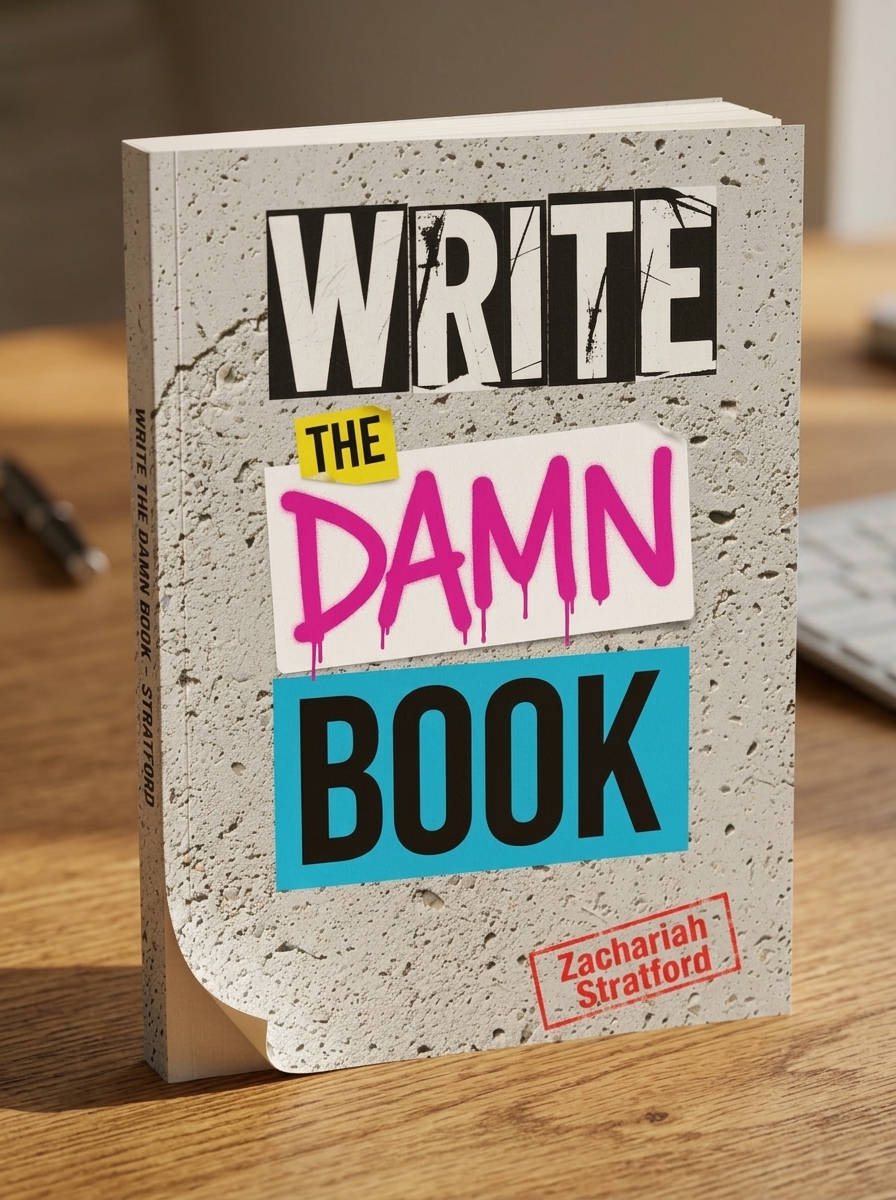
How AuthorWizard Generates Your 3D Mockups
AuthorWizard's 3D Book Rendering Studio produces 5 photorealistic renders from your finished cover in seconds — no designer, no waiting, no $300–$800 freelance invoice.
The 5 mockup types are:
- Hardcover
- Paperback
- E-Reader / Kindle device
- Standard boxset
- Course package boxset
Every render uses your actual cover — the one you built or uploaded in the Cover Designer — so the colors, typography, and design are accurate, not a placeholder. The renders come out at 300 DPI, ready for ads, landing pages, your Amazon Author Page, and social media without any additional editing.
If you haven't built your cover yet, the Cover Designer that feeds into the mockup studio pulls up to 6 real bestselling covers in your category, analyzes their color psychology and typography, and hands you a written recommendation before you design anything. The mockup studio sits downstream of that — it's one continuous pipeline from cover concept to launch-ready renders.
The renders are sized and resolution-ready for every surface you'll need in a pre-order campaign: horizontal for landing page headers, vertical for social posts and ads, and square-crop-friendly for email headers. No resizing required after download.
Common Mistakes That Kill Pre-Order Momentum
Using a 3D mockup incorrectly can be worse than not using one at all. Avoid these.
Using a low-resolution render. A blurry or pixelated mockup in a Facebook ad or on a landing page signals that the book itself is low-quality. Only use renders at 300 DPI — anything less looks amateur at full scale.
Cluttering one post with all 5 mockups. Five renders in a single Instagram post isn't impressive; it's confusing. One hero image, one clear message. Save the other renders for future touchpoints in your launch sequence.
Using the wrong render for the platform. A boxset render in a reply tweet looks busy and hard to read at thumbnail size. Match the visual complexity of the render to the display size of the platform.
Skipping the Amazon Author Page. Most authors update their social media and forget their Amazon page entirely. A photorealistic render on your Author Page is visible to every reader who clicks your author name — it's one of the highest-converting placements for a pre-order and takes about 3 minutes to update.
Waiting until launch day to generate renders. Build your mockups the same week you set your pre-order live. You need 2–4 weeks of promotional runway, and the renders are the visual spine of that entire campaign.
Get 5 Photorealistic 3D Book Mockups — Instantly
Hardcover, paperback, e-reader, boxset, course boxset — AuthorWizard generates all 5 in seconds from your cover. Ready to drop into your ads, landing page, and Amazon author page.
Try the 3D Mockup Studio Free →